How to Export WooCommerce Orders by Status, Date, or Payment Method

Efficient order management is a critical component of running a successful WooCommerce store. As your business grows, so does the need to handle large volumes of customer orders quickly and accurately. One of the most time-consuming tasks store owners face is extracting the right order data at the right time. Whether you need to prepare a sales report, share order details with your logistics partner, or analyze payment trends, filtering and exporting WooCommerce orders by status, date, or payment method becomes essential.

WooCommerce offers basic export capabilities, but they rarely meet the needs of stores dealing with thousands of orders or custom workflows. This is where the Advanced Order Export for WooCommerce plugin by AlgolPlus provides a robust and scalable solution. Designed for store owners, accountants, warehouse managers, and developers, the plugin enables deep customization of exports, giving you the flexibility to extract only the data that matters to your operation.

Why Precise Filtering Makes a Difference

In WooCommerce, not every order carries equal importance. You might want to export only completed orders for invoicing, or filter out pending orders when preparing shipment data. Similarly, when handling refund requests, failed transactions, or subscription renewals, exporting orders by payment status or gateway becomes a necessary part of your workflow. With the ability to filter by date range, you can also generate time-sensitive reports for monthly sales reviews or tax calculations.

Using the Advanced Order Export plugin, you gain access to a powerful filtering engine that supports these use cases and more. You can select specific order statuses like completed, pending, or failed. You can narrow results to a custom date range, whether it’s today’s orders or an entire quarter’s worth. Additionally, you can filter by payment methods such as credit card, PayPal, or bank transfer, allowing for detailed financial breakdowns or payment gateway reconciliation.
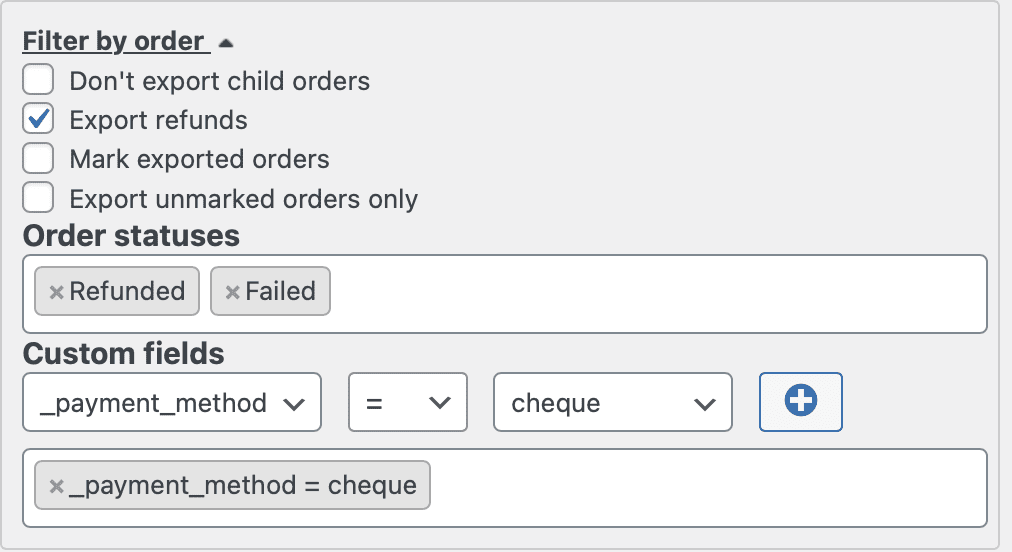
Filter by the order status and additional filter by the payment method

Automating Exports to Save Time and Reduce Errors

What sets this plugin apart is not only its ability to filter but to schedule and automate exports. Once your filters are set, you can define export jobs that run on a fixed schedule or are triggered by order status changes. For instance, whenever an order moves to “processing,” it can automatically be included in a real-time export sent to your warehouse team. Or, each Friday, you might schedule a report of all orders paid via PayPal within the past week. This automation ensures that your data is always current and eliminates the need for manual intervention.
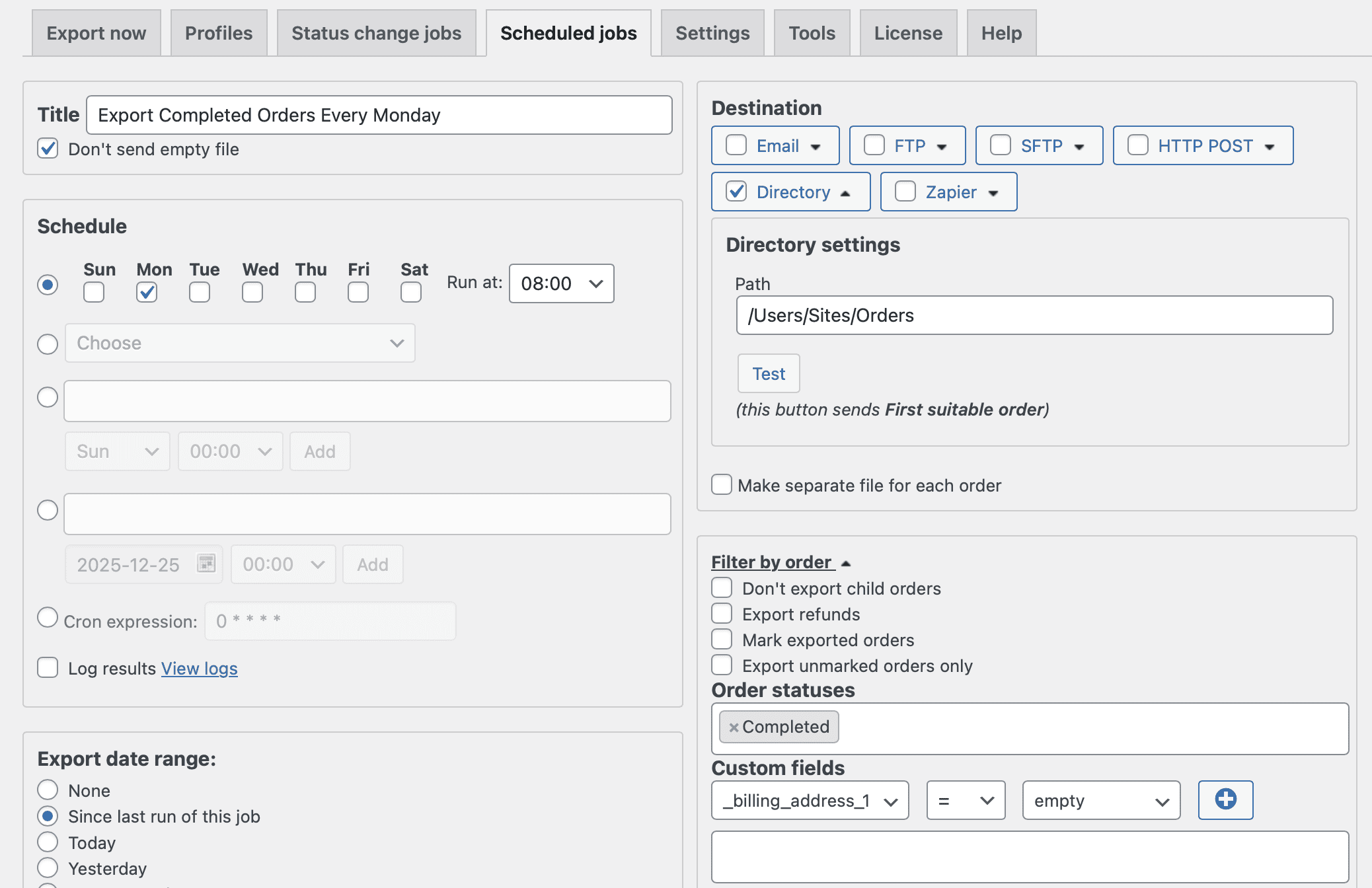
The example of the scheduled export of the completed orders every Monday on the local directory

You can also send the filtered exports directly to destinations like email addresses, FTP servers, or third-party services via webhooks or Zapier. This is especially valuable for businesses with external teams or integrated systems that rely on real-time order data for fulfillment, billing, or analysis.

Designed for Flexibility and Custom Business Logic

AlgolPlus has engineered this plugin to support a wide range of eCommerce scenarios. Whether you’re exporting WooCommerce orders with custom fields, managing international orders, or filtering by shipping methods or product types, the plugin adapts to your business model. Its user-friendly interface allows even non-technical users to build complex export rules, while developers benefit from compatibility with custom code and integration points.

For businesses that rely on structured data, the ability to export orders in multiple formats like CSV, Excel, XML, and JSON ensures compatibility with CRMs, ERPs, and accounting software. You’re not limited to rigid export templates – instead, you can tailor every column, format, and rule to fit your specific operational needs.
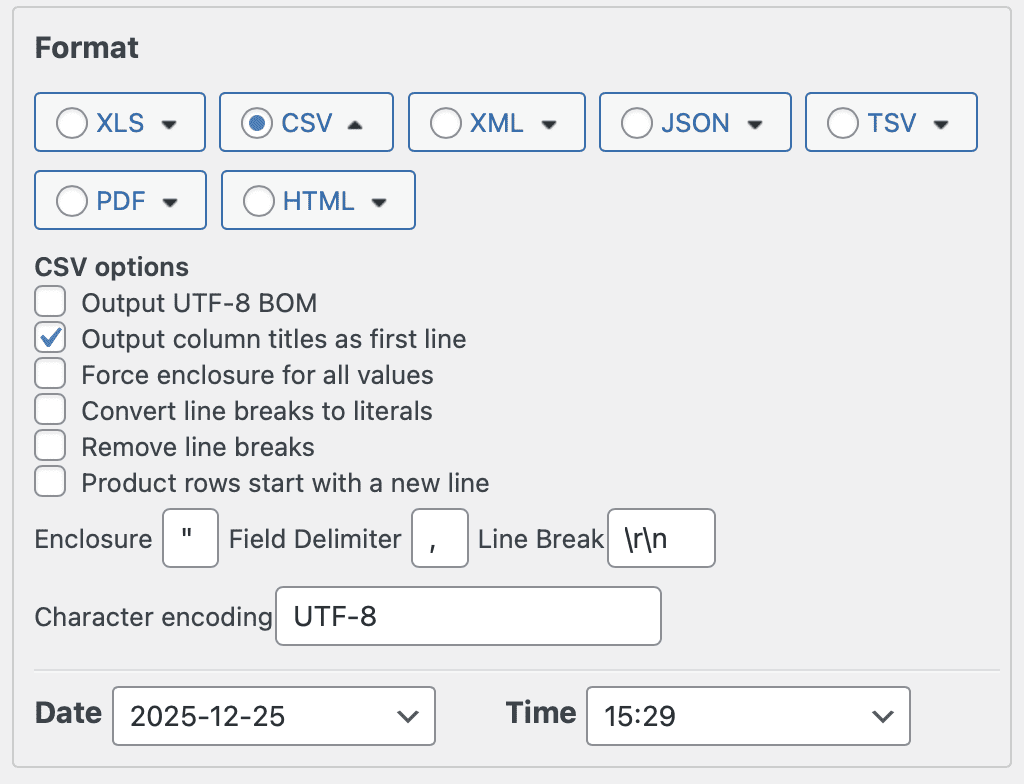
Choose one of the most popular file format for exported order and adjust it as you need it

Turning Export Data into Business Value

When you can quickly export WooCommerce orders by status, date, or payment method, you gain more than just efficiency. You get better insights, faster response times, and stronger alignment between departments. Your support team gets the data they need to resolve issues, your finance team has the numbers for accurate accounting, and your logistics partners always have up-to-date delivery instructions.

By using Advanced Order Export for WooCommerce, you turn raw data into actionable intelligence while reducing the risk of human error. Whether you run a small niche store or a multi-channel enterprise, this plugin empowers your team to move faster, work smarter, and serve customers more effectively.

In the ever-evolving world of eCommerce, control over your data is not a luxury – it’s a necessity. With this plugin, you get exactly that.

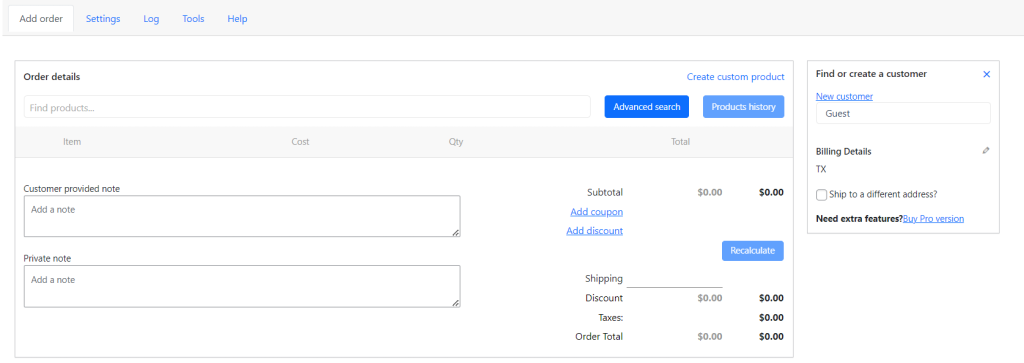
How to set up Phone Orders for WooCommerce: Beginners Guide

How to set up Phone Orders for WooCommerce: Beginners Guide

Essentially, a phone order is a calling up to your buyers and placing an order via telephone. This can obviously be a huge boon to your revenue as you don’t have to use postage or an expensive shipping service to ship products to customers who may only be making a small order.

The Phone Orders for WooCommerce makes it easier to enter phone orders in the WooCommerce backend. This makes it much more efficient.

The plugin has many useful features:

  • Quick search through existing customers or add new ones
  • Easily add new products or search for existing ones on-the-go
  • Prices can be set according to default rates, or adjusted within the order itself

In this article, we will show how to install and start to use the Phone Orders plugin.

How to install Phone Orders for WooCommerce

Click on the “Plugins” tab and select “Add New”.

Then enter “Phone Orders for WooCommerce” in the search bar. Click on the “Install now” button and then on the “Activate” button.

The plugin will appear in the “Woocommerce” tab.

How to create a new order in Phone Orders for WooCommerce

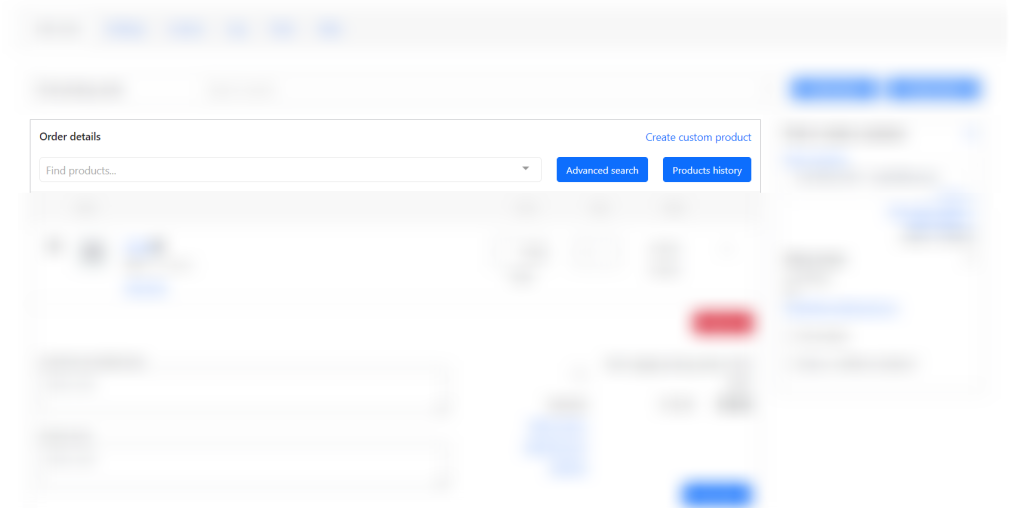
As you can see in the picture, the “Phone Orders” area is divided into two blocks: order details and information about the customer.

Phone Orders main area

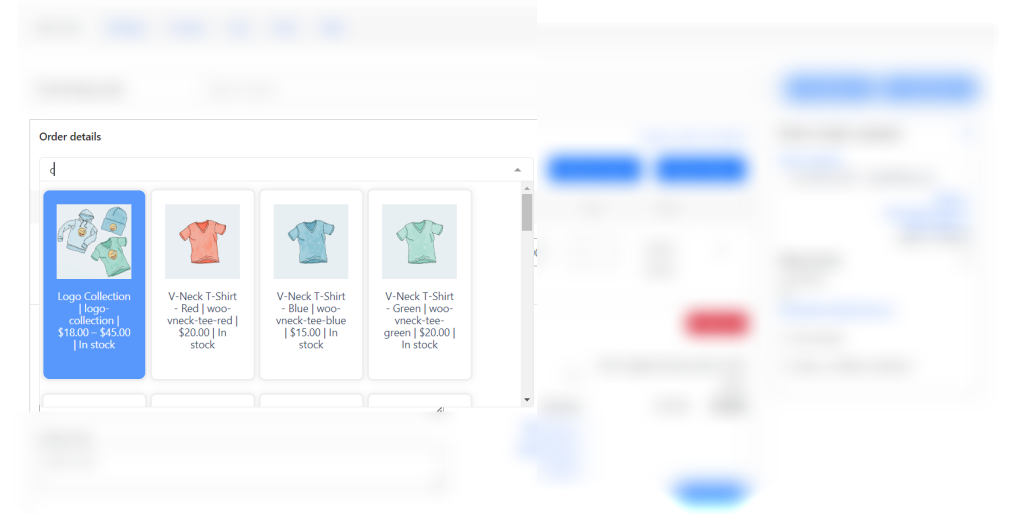
Fill in the details of the order. We select the products that the customer wants to purchase.

Searching of the products in Phone Orders search

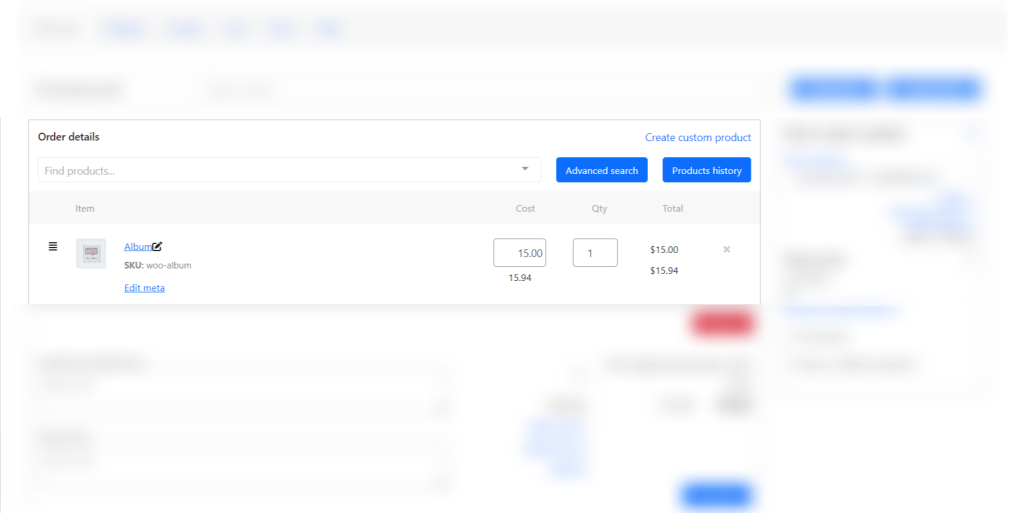
As soon as we click on the desired product, it immediately appeared in the shopping cart.

The Phone Orders’ cart

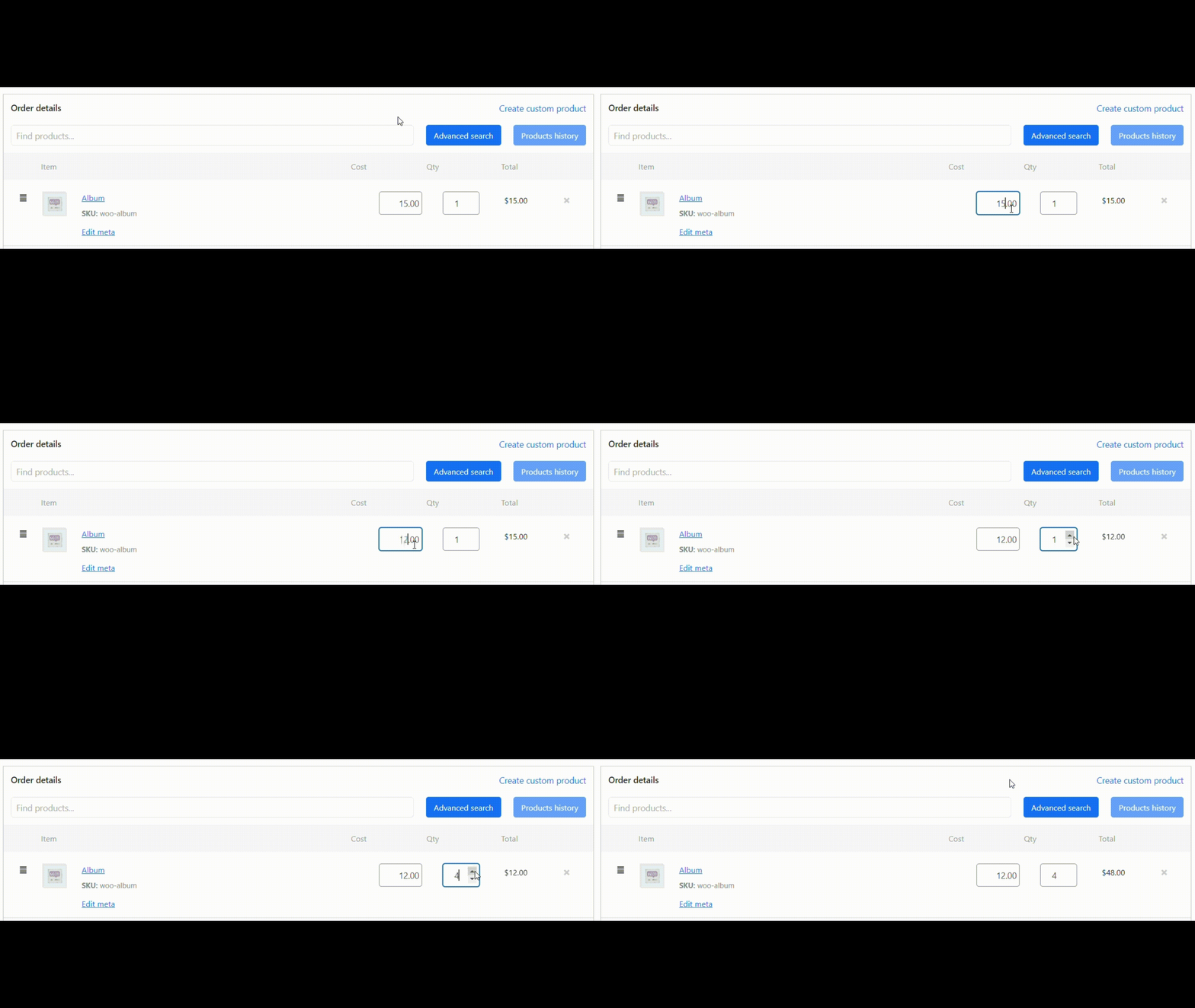
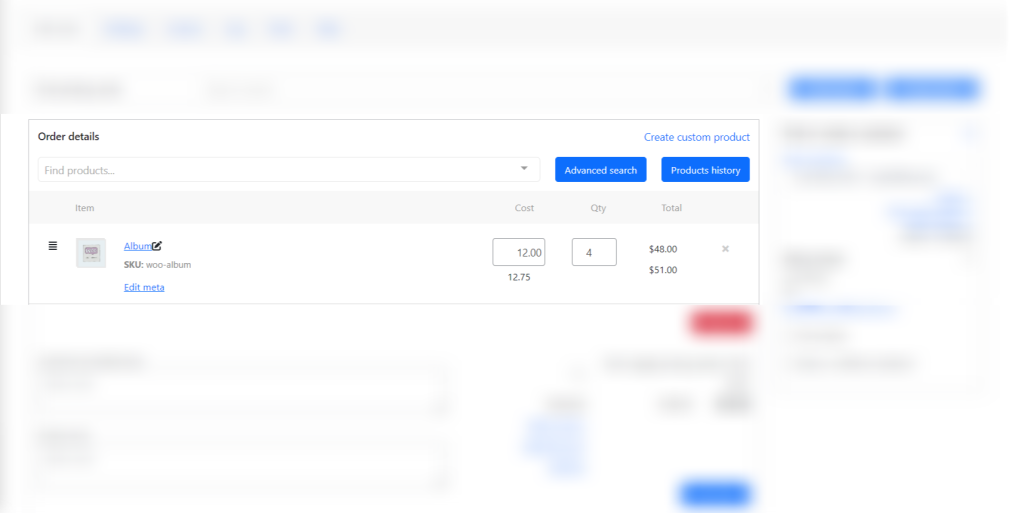
Let’s change the price and quantity.

Changing the price and quantity in Phone Orders

Click on the “Recalculate” button to display the tax in the shopping cart.

The “Recalculate” button

Now the price with tax is displayed in the cart.

New price with tax in the shopping cart

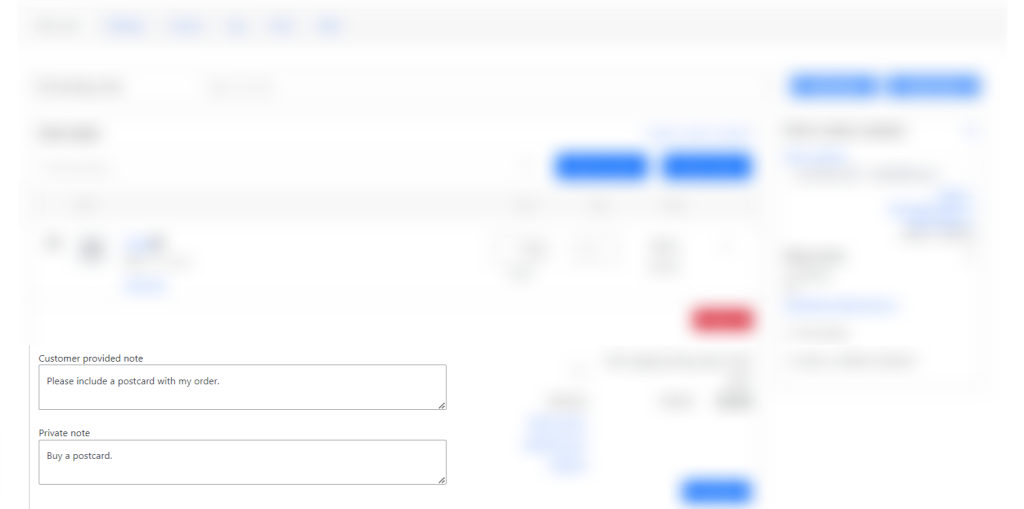
Notes are located in the lower left corner. It can be both notes of the customer, and others.

Write your order’s note in Phone Orders

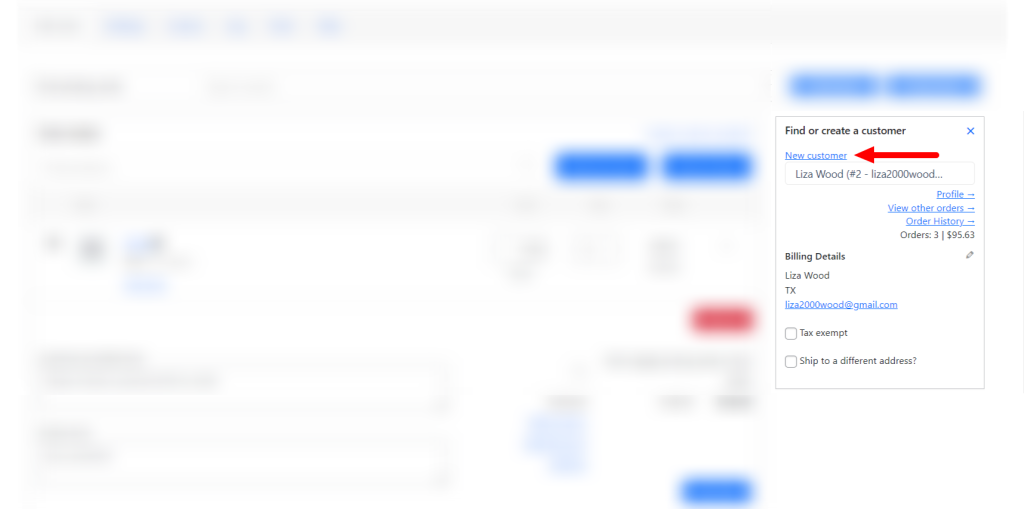
Let’s add a new customer. Click on the “New customer” button link.

The “New customer” link

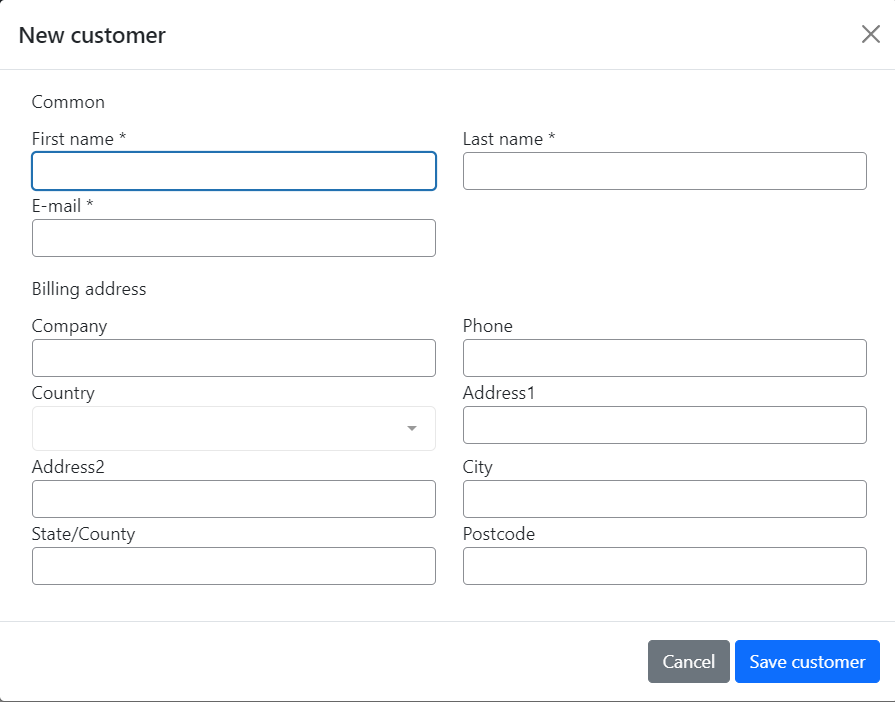
Required fields are marked with a checkmark. Let’s fill it in.

Note: You can set up suitable required fields in the pro version.

The “New customer” editor

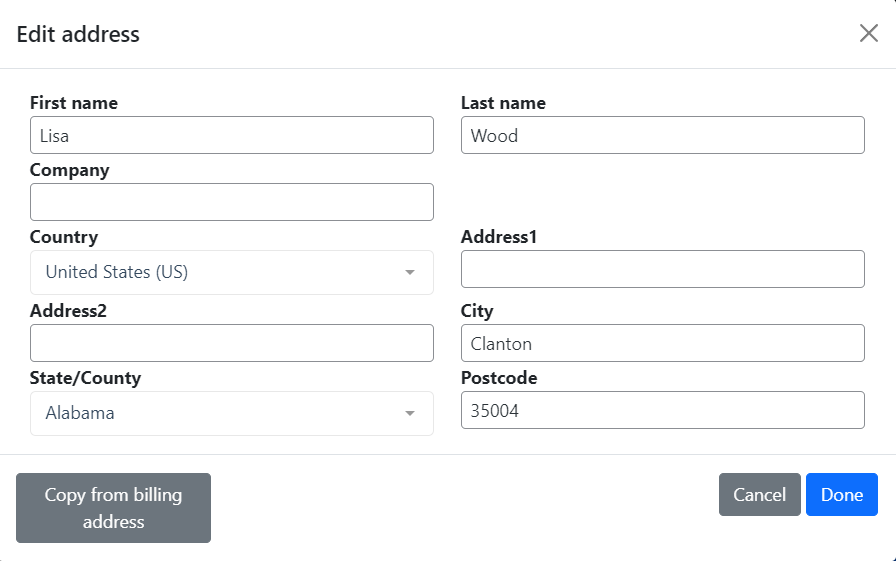
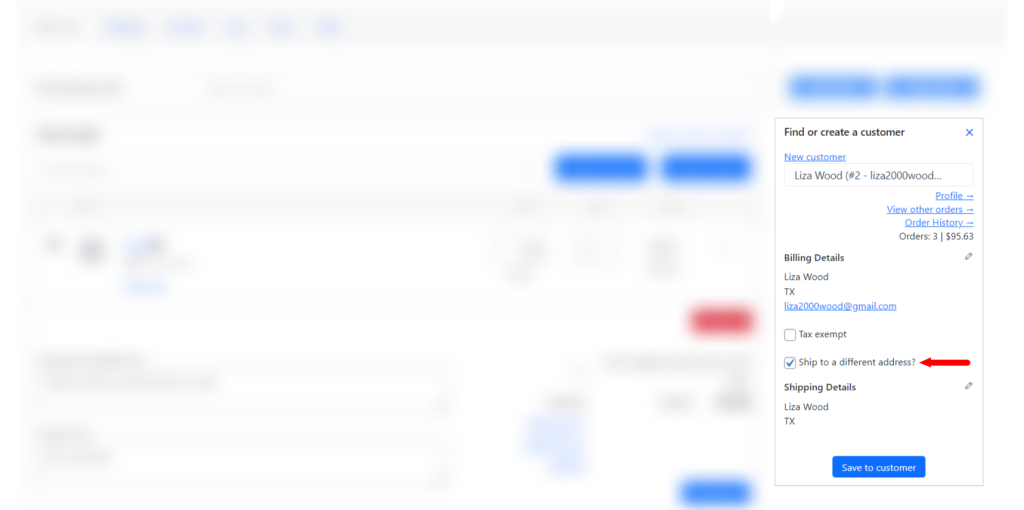
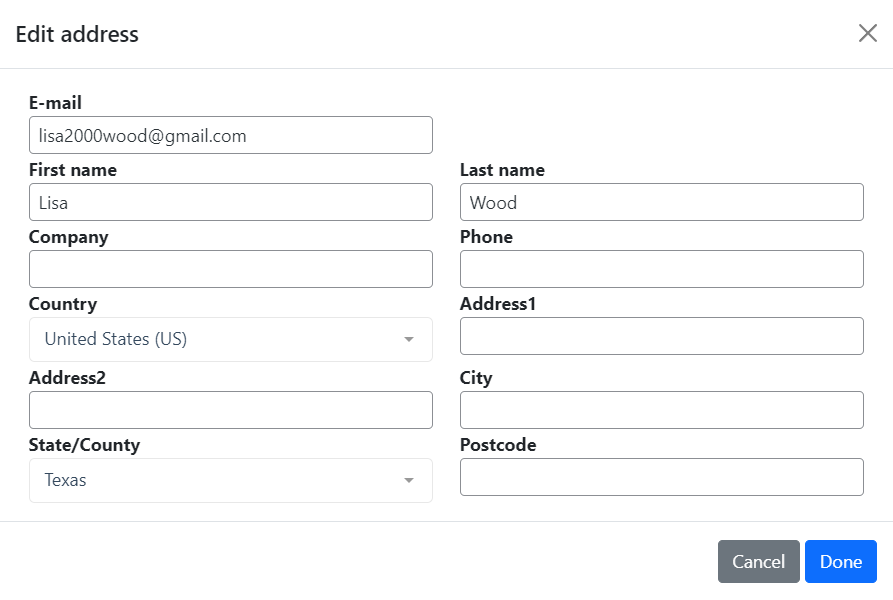
For example, Lisa (our customer) said that she needs to deliver the order to a different address. Check the box “Ship to a different address?” and fill in the data (pencil icon).

Checking the box “Ship to a different address?”
Editing address

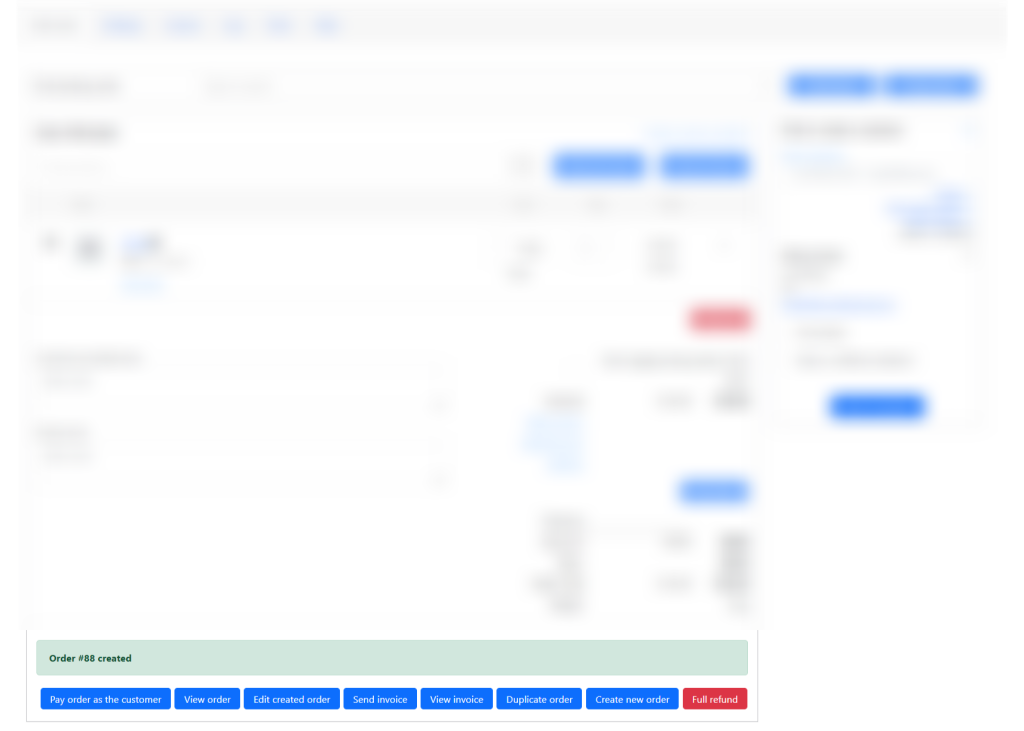
When you have entered all the details of the order, click on the “Create order” button. Now you can view the order, send a check to the customer by email or create a new order.

Creating the order

This is what the “View order” page looks like.

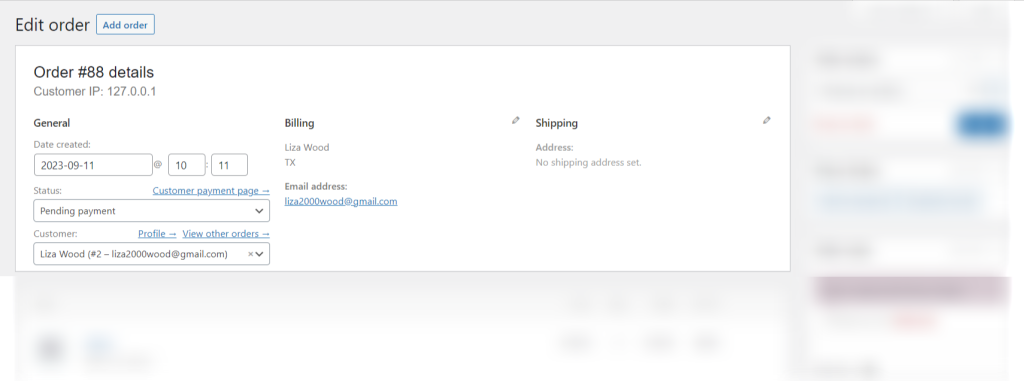
The “View order” page

How to create a new order based on existing order in Phone Orders for WooCommerce

Find, edit and copy an existing order using “Find Existing Order” section in the PRO version of the Phone Orders plugin:

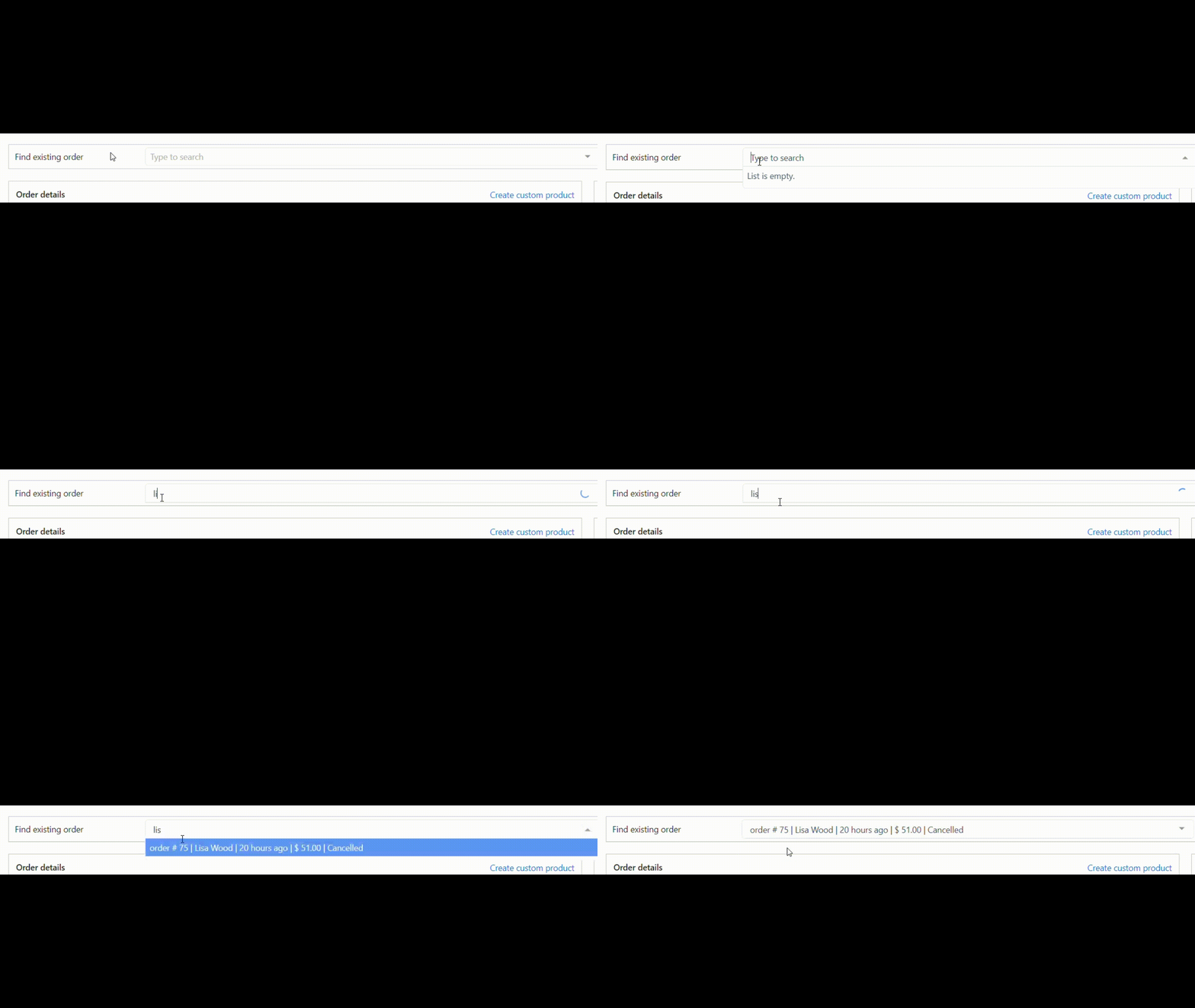
  1. Input customer name, product name or order number;
Using the “Find existing order” panel
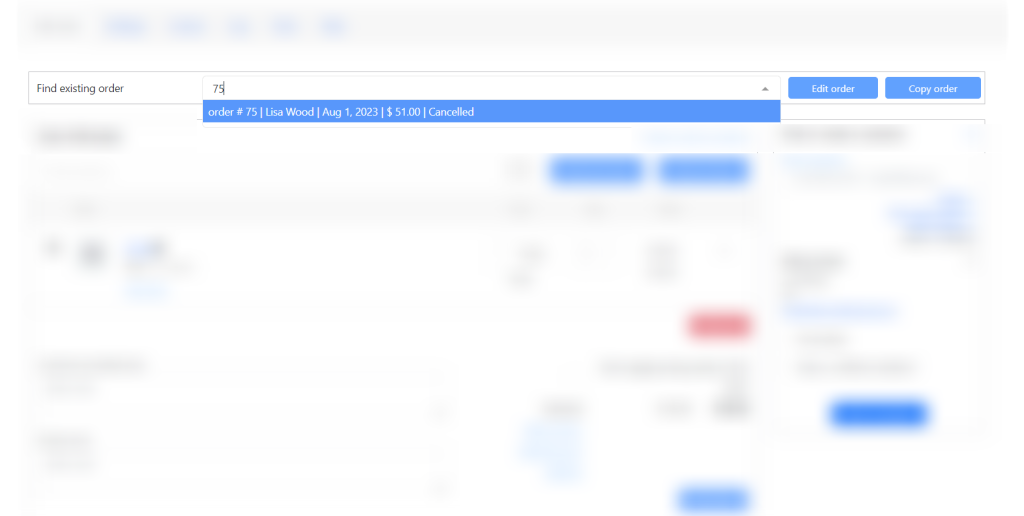
  1. Find and choose the order you need;
Choosing needed order
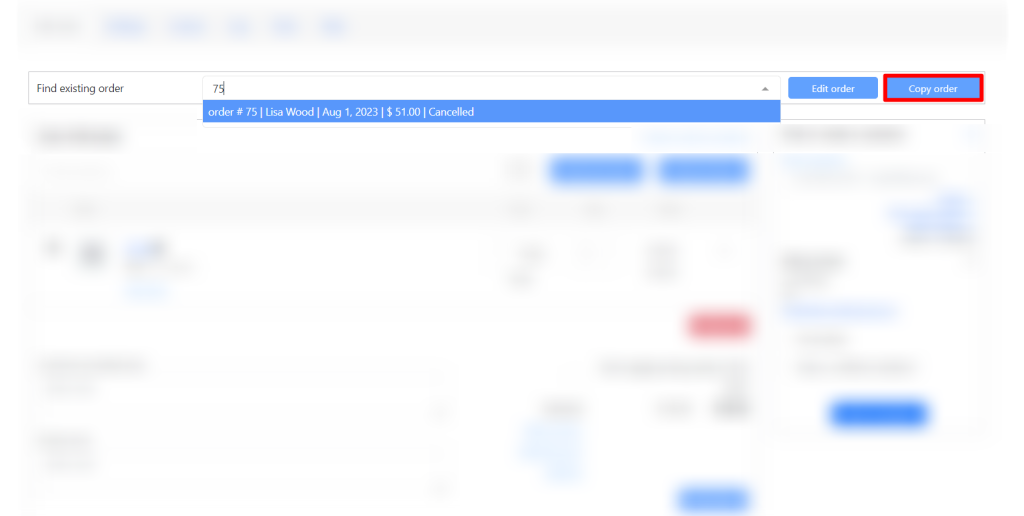
  1. Сopy it to the new.
Clicking to the “Copy order” button
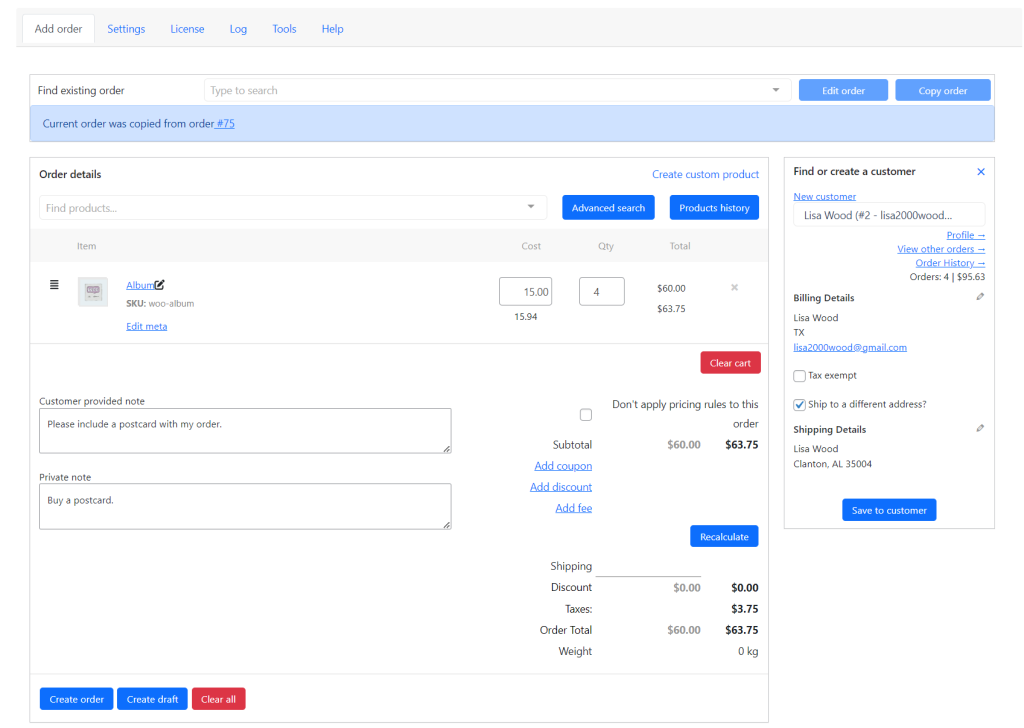
Successful creation of a copy of the order
The view of copied order

In the PRO version of the plugin, you have access to such functions as:

  • Pause and resume the order
  • Customer search by shipping/billing fields
  • Configure fields and default values while adding new customers
  • Define products that can be sold (out of stock? without price?)
  • Support composite/bundled/other complex products
  • Add any additional fees
  • Setup custom fields for the order/customer
  • Extra WooCommerce reports
  • After creating the order, you can “Pay order as customer”

Read about them in our article How to set up Phone Orders for WooCommerce: Beginners Guide (Pro).

Conclusion on how to set up Phone Orders for WooCommerce

In this blog post I have demonstrated how to set up Phone Orders for WooCommerce. I hope you will be able to set up the plugin with the help of this article. If you are looking for other helpful tutorials, read related articles of this blog.